
Ask your AI assistant about FIT fixtures and results
30 Sep 2026 @ 9:00 UTC
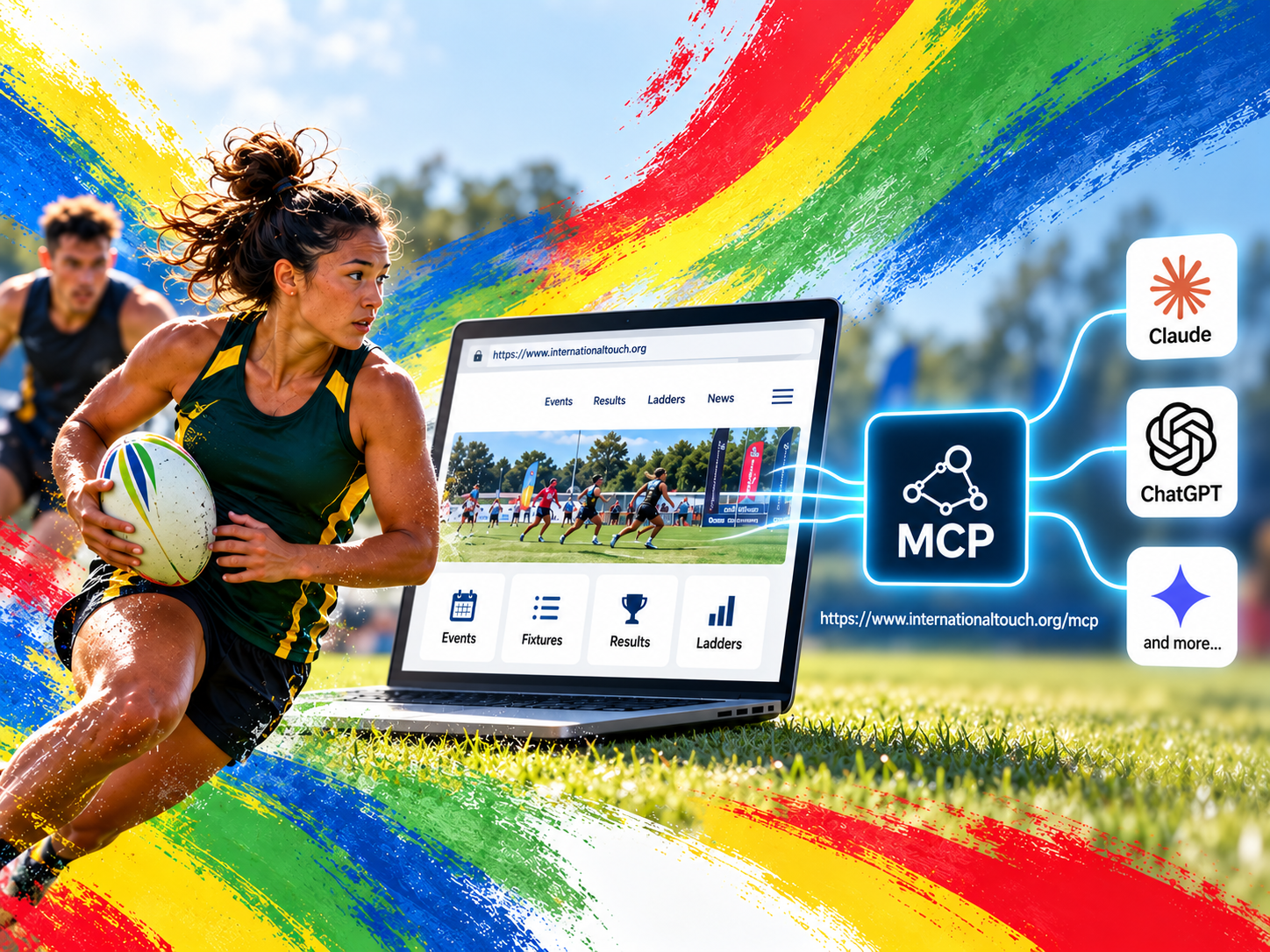
The FIT website now speaks the Model Context Protocol, so Claude, ChatGPT and any other AI tool that supports MCP can look up real fixtures, results and ladders for every FIT sanctioned event instead of guessing. Here is how to connect your favourite assistant in a couple of minutes.
Anyone who has asked an AI assistant "when do Australia play next at the World Cup?" knows the answer is usually a confident guess. The assistant has no way to see the draw, so it makes something up. That changes today: the FIT website now publishes its schedules, results and standings through the Model Context Protocol (MCP), the open standard that lets AI tools look things up in a live data source. Connect your assistant once and it will check the real draw before it answers.
The address to give your AI tool is:
https://www.internationaltouch.org/mcp
There is no login and nothing to install on the FIT side. The connection is read-only and only exposes what is already public on this website: which events are on, the draw, results, ladders, venues and live stream links for every FIT sanctioned event, from the World Cup and the Euros to the Asia Pacific and Atlantic championships. It does not include player statistics or anything personal, and it cannot change anything.
What you can ask
Once connected, ask questions the way you would ask a team manager. Give the assistant the event name or year if there could be any doubt, and it will work out the rest:
- "Which FIT events are coming up in the next couple of months?"
- "When is Japan's next game at the Asia Pacific Seniors Touch Cup, and where?"
- "How did Wales go at the Euros 2026? List their Mixed Open results."
- "Show me the Women's 27 ladder from the European Championships 2026."
- "How many games at the Euros were live streamed, by division?"
- "Who won the Men's Open final at the Euros 2026, and what was the score?"
- "Give me the full Saturday schedule on Field 3 at #apstc2026."
Kick-off times are given in the local time of the venue, so if you are following from home, ask the assistant to convert them to your time zone.
Claude
Custom connectors are available on Claude's web app, the desktop app and Cowork, on every plan including Free (a Free account can add one custom connector).
- Open Customize and choose Connectors.
- Click + and then Add custom connector.
- Give it a name such as International Touch and paste
https://www.internationaltouch.org/mcpas the remote MCP server URL. Leave the advanced OAuth settings empty. - Click Add. In a new chat you can now ask about any FIT event.
On a Team or Enterprise plan an Owner adds the connector once and everyone else finds it under Customize > Connectors and clicks Connect.
ChatGPT
ChatGPT calls custom MCP servers "connectors" and they require developer mode, which is available on Plus, Pro, Business, Enterprise and Edu plans (not Free). On a Business or Enterprise workspace an administrator has to enable it first.
- Open Settings and turn on Developer mode. OpenAI has moved this switch during 2026: look under Apps & Connectors > Advanced settings, and if it is not there, under Security and login.
- Back in Apps & Connectors, choose Create.
- Enter a name such as International Touch, a short description, and
https://www.internationaltouch.org/mcpas the MCP server URL. Choose No authentication. - Save. ChatGPT lists the tools it discovered; confirm to finish.
In a conversation, open the + menu in the message box, choose Developer mode and tick the connector, or simply mention it by name in your message.
Claude Code, Codex and Gemini CLI
Each of the command line agents adds a remote server with one command. Run the one for your tool, then start a session and ask away:
claude mcp add --transport http fit https://www.internationaltouch.org/mcp
codex mcp add fit --url https://www.internationaltouch.org/mcp
gemini mcp add --transport http fit https://www.internationaltouch.org/mcp
Add --scope user to the Claude Code command if you want the connection available in every project rather than just the current one. Type /mcp inside Claude Code to check it shows as connected.
Cursor
Open the Customize page from the sidebar to add an MCP server, or add this entry to ~/.cursor/mcp.json (for every project) or .cursor/mcp.json inside a project:
{
  "mcpServers": {
    "fit": {
      "url": "https://www.internationaltouch.org/mcp"
    }
  }
}
VS Code and GitHub Copilot
Run MCP: Add Server from the Command Palette, choose HTTP, and paste the address. Or put this in .vscode/mcp.json in your workspace, or in your user configuration via MCP: Open User Configuration:
{
  "servers": {
    "fit": {
      "type": "http",
      "url": "https://www.internationaltouch.org/mcp"
    }
  }
}
Good to know
- The assistant sees the same information as this website, updated as results are entered at the event. Draws that have not been published yet are not visible.
- Answers are only as good as the question. Name the event and the year when there could be any confusion, and say which division you mean; a nation has a separate team in every division it enters.
- It works with any tool that supports remote MCP servers over HTTP, not only the ones listed here. Look for "custom connector", "MCP server" or "remote server" in your tool's settings and paste the same address.
- Not every answer will be right. The assistant can misread a fixture list just as a person can, so check the event pages on this website before you book flights.